Remove Person from Photo with AI
Remove person from photo shots in one pass: brush over anyone you want gone — tourists, photobombers, strangers in the background — and AI rebuilds the scene behind them before you unlock an HD file.
- Brush to Select
- AI Background Fill
- Free Preview
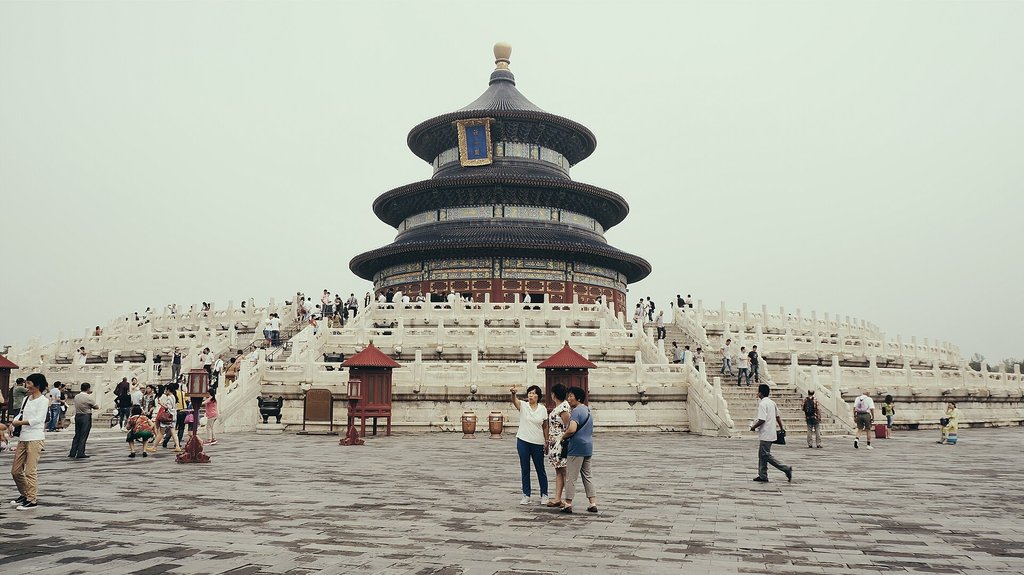 Before
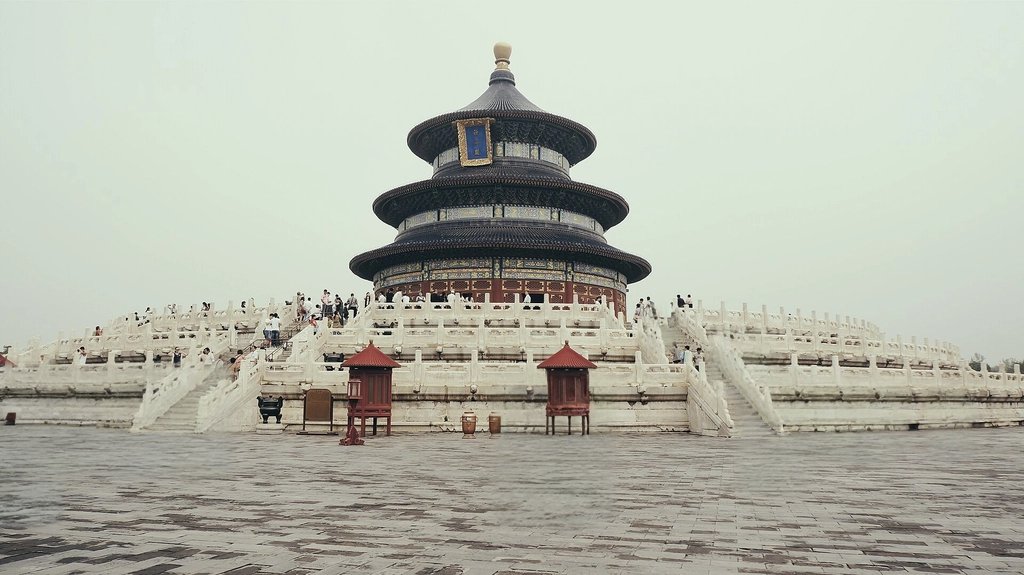 After
How to Remove Person from Photo
Upload the Photo
JPG, PNG or WebP up to 25MB.
Set the Brush Size
Large for whole bodies, smaller near things you want to keep.
Paint Over the Person
Cover them completely, including their shadow. Undo or Clear fixes mistakes.
Remove and Download
Click Remove It, compare, then save the free preview or unlock HD.
How the People Remover Works
Remove person from photo by painting over them with a brush; an AI inpainting model then fills the painted area with background that matches its surroundings — sky, sand, pavement, a wall. You decide exactly what disappears, so it works for one stranger at the edge of the frame as well as a few tourists in front of a landmark.
The result is a prediction, not a recovery: the AI can't see what was really behind the person, so it creates a plausible background. On simple scenes that is usually convincing. On complex ones — a crowd, a patterned floor, a sign with text — it may look smeared. You can compare before and after in the editor and only unlock the HD download if you're happy with it. If the goal is to erase person from photo for a listing, that is the trade-off to accept.
A shadow on the photo, with the person staying in the picture, is a different job: remove a shadow from a photo. That page does not erase the person. If the thing you want gone is an object rather than a person, use the photo eraser; for captions or date stamps there is the text remover. If you want to keep the person and drop everything behind them instead, use the background remover.
What to Expect: Simple vs. Busy Backgrounds
Results depend mostly on what's behind the person. Open sky, water, grass, sand, plain walls and road surfaces are easy to continue, so the person usually vanishes without a trace. That easy case is where remove person from photo looks cleanest.
Busy backgrounds are harder. Other people, regular patterns such as tiles or railings, text, and objects partly hidden by the person all have to be invented, and the AI may blur or distort them. In those scenes, keep the painted area as small as you can and judge the result at full size.
When to Use It
Travel Photos
Clear tourists and passers-by from a landmark shot you couldn't get empty.
Photobombers
Remove someone who walked through the frame behind you.
Group Photos
Take a stranger out of the edge of a group shot. You can remove people from photo at the edge, while the middle of a packed group is much harder.
Property & Street
Clean up people who wandered into a listing photo or street scene.
Tips for Natural-Looking Results
Include shadows and reflections
A shadow left on the ground is the quickest giveaway. Paint over it along with the person.
Paint a little past the outline
Leftover pixels of hair or clothing confuse the fill, so cover a small margin around the person.
Smaller is easier
A distant person against sky or grass disappears cleanly. Someone filling much of the frame leaves a large area for the AI to invent.
Do it in one pass
Each run starts from your original upload, so paint everyone you want removed before clicking Remove It.
Limitations
- When a person covers a large part of the frame — roughly half or more — the filled area often looks distorted.
- Hidden details are invented, not restored. Faces, text or objects behind the person can't be recovered.
- The free preview is 512px on the longest side with a watermark; full resolution without the watermark uses one credit.
- Each run works on the original upload. To edit a result again, download the HD version and upload it as a new image.
AI People Remover vs. Other Options
| ZeroBG people remover | Photoshop fill tools | Phone gallery erasers | |
|---|---|---|---|
| Setup | Browser, nothing to install | Desktop app, paid subscription | Built into some phones |
| Selecting the person | Brush | Selection tools or brush | Tap or brush |
| Fine control | Brush size and undo | Extensive | Limited |
| Output | Free 512px preview; HD with a credit | Full resolution | Full resolution on supported phones |
Remove Person from Photo FAQ
Is it free to remove person from photo?
You can try it without an account and download a watermarked 512px preview. You can remove someone from a picture for $1.99 with no account, or with one HD credit. A free account includes 1 credit, and packs are $4.99 for 20 or $9 for 100.
Can I remove more than one person?
Yes. Paint over everyone you want removed before clicking Remove It. Several small figures are usually fine; very large areas are harder to fill convincingly.
Will it leave a blur where the person was?
On simple backgrounds the fill is usually hard to spot. On complex backgrounds you may notice some smoothing or repeated texture.
Do I need to paint precisely?
No. Cover the person fully with a small margin — slightly over-painting is better than missing an edge.
Does it work on my phone?
Yes. It runs in mobile browsers, and you can paint over the person with your finger.
Can it remove someone from the middle of a group photo?
That's the hardest case. If the person touches or overlaps others, the AI has to rebuild parts of the people next to them, which rarely looks right. People at the edge of a group work much better.
Remove Person from Photo Now
Upload a photo, brush over the person, and see the result.