AI Image Upscaler Upscale Photos 4× Online
Turn small or soft images into sharp 4× versions — crisper edges, cleaner text and fewer compression blocks, up to 4096px. Check the detail at 100% before you download.
- 4× Upscale
- 100% Zoom Preview
- Up to 4096px
Larger images are resized to 1024px on the longest side first, so results are at most 4096px. Minimum 16px per side.
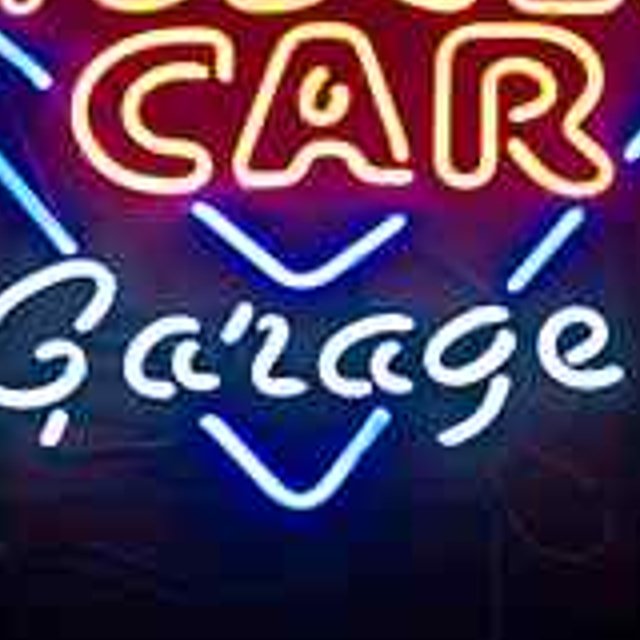 Before
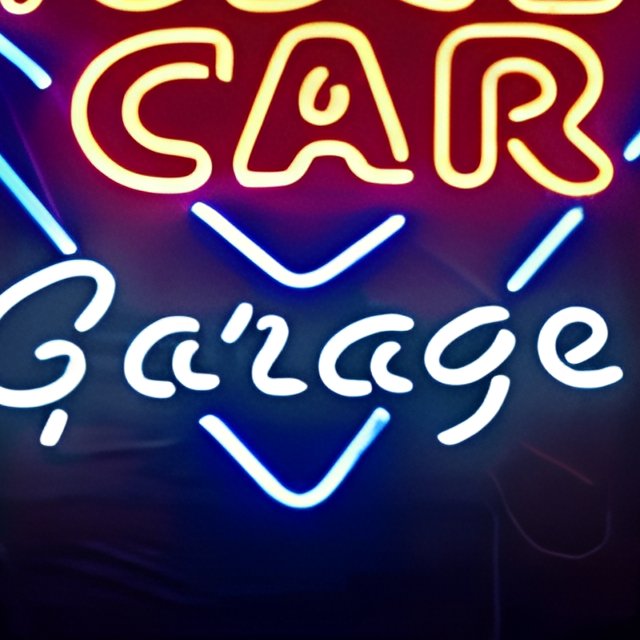 After
AfterHow to Upscale an Image
Upload
JPG, PNG or WebP up to 25MB. Small images benefit the most.
Wait a Few Seconds
The AI upscales it 4×. Most images finish in under 15 seconds.
Compare at 100%
Use the slider and the 100% zoom view to judge the detail.
Download
Save the free watermarked preview, or unlock the full-size HD file for 1 credit.
What the AI Image Upscaler Does
An image upscaler increases image resolution: it makes a picture larger while trying to keep it sharp. A normal resize just stretches the existing pixels, so edges turn soft and blocky. This tool sends your image to an AI upscaling model (Recraft Crisp Upscale) that predicts the extra pixels, giving cleaner lines, smoother gradients and more legible text at four times the width and height.
Every image is upscaled exactly 4×: a 1000×750 photo becomes 4000×3000. Images larger than 1024px are resized to 1024px first, so results are at most 4096px on the longest side. After processing, a before/after slider and a 100% zoom view show the same detail with a standard resize and with the AI upscale.
What It Improves — and What It Can't
Good: small, clean images
Product shots, logos, illustrations and screenshots get crisper edges and more readable text. For a small logo that also needs a transparent background, upscale it here first, then use the logo background remover.
Good: mild compression
Blocky JPEG artifacts are smoothed out instead of being enlarged.
Limited: blur and focus
It sharpens soft detail but doesn't remove motion blur or rescue an out-of-focus shot.
Limited: tiny faces and text
It doesn't invent faces or letters. A face only a few dozen pixels wide stays vague and can look slightly distorted, and text too small to read in the original stays unreadable — it won't be replaced with made-up words.
Image Upscaler or Photo Enhancer?
An upscaler adds resolution; a photo enhancer is usually expected to make a picture look better at any size. This tool is the first kind: it enlarges and cleans up your image while staying faithful to it. It won't change lighting or colors, retouch skin, or restore scratched old prints.
That's deliberate: some "creative" AI enhancers repaint the image and can change a face, the digits in a screenshot or the shape of a product. To remove something first, use the photo eraser; to cut out the subject, try the background remover.
When to Use It
Product Photos
Enlarge small supplier or catalog shots for listings.
Logos & Graphics
Rescue a small logo or icon you only have as a low-resolution PNG.
Screenshots & Slides
Make captured text and UI sharper for documents and presentations.
Prints & Wallpapers
Get more pixels from a web-sized photo before printing.
Tips for the Best Results
Start from the best copy
Upscale the original file, not a screenshot or a re-saved copy.
Use it on small images
The gain is biggest below 1024px. A large, already sharp photo is resized to 1024px first, so upscaling it adds little.
Judge the 100% zoom
On a small screen both versions can look alike; the zoom view shows the real difference.
Crop before upscaling
If you only need part of an image, crop it first so that part gets the full 1024px input.
Limitations
- Motion blur, camera shake and missed focus are not removed. Very small faces and text can't be recovered.
- Transparent PNGs keep their transparency: the colors are upscaled by the AI and the transparency mask is resized smoothly, so soft edges can show a thin light fringe on dark backgrounds.
- Animated images aren't supported; only the first frame is upscaled.
- The free preview is a watermarked image up to 1024px plus a watermarked 100% crop. The full-resolution file without watermark uses one credit.
AI Upscaler vs. Other Ways to Enlarge
| AI upscaler (this tool) | Standard resize | Creative AI enhancers | |
|---|---|---|---|
| Sharpness | Crisp edges and text | Soft, blocky edges | Very detailed |
| Faithful to the original | Yes — no invented content | Yes | Can change faces, text or products |
| Compression artifacts | Smoothed out | Enlarged | Usually removed |
| Best for | Products, logos, screenshots, small photos | Quick previews | Artistic images where accuracy matters less |
Image Upscaler FAQ
Is the image upscaler free?
You can upscale without an account and view a watermarked preview plus a 100% zoom comparison. The full-resolution, watermark-free file uses one credit — 3 come with a free account, and 20 more cost $4.99.
How much bigger will my image get?
Exactly 4× in width and height for images up to 1024px on the longest side, so 800×600 becomes 3200×2400. Larger images are resized to 1024px first, so the maximum result is 4096px on the longest side.
Can it upscale an image to 4K?
Yes, if your image is 1024px wide in landscape: 1024×576 becomes 4096×2304, slightly more than 4K UHD (3840×2160). Smaller images end up proportionally smaller.
Will it fix a blurry photo?
Only partly. It sharpens soft, low-resolution detail, but it can't undo motion blur or bring an out-of-focus photo into focus.
Does it change faces or text?
It's designed not to repaint content: it sharpens what's already there, so it doesn't swap in a different face or rewrite numbers and words. Details too small to see in the original stay vague, and very small faces can come out slightly distorted rather than sharper — check them in the 100% zoom view.
What file format do I get?
Photos download as high-quality JPG. PNG uploads, including transparent ones, download as PNG.
Upscale Your Image Now
Upload a small image and compare the 4× result at 100% zoom.